
Features
Offline maps
The map normally fetches what it needs as you go. That is fine near town and no use at all in a valley with no coverage. Downloading an area puts the map on the bike, where the network cannot take it away.
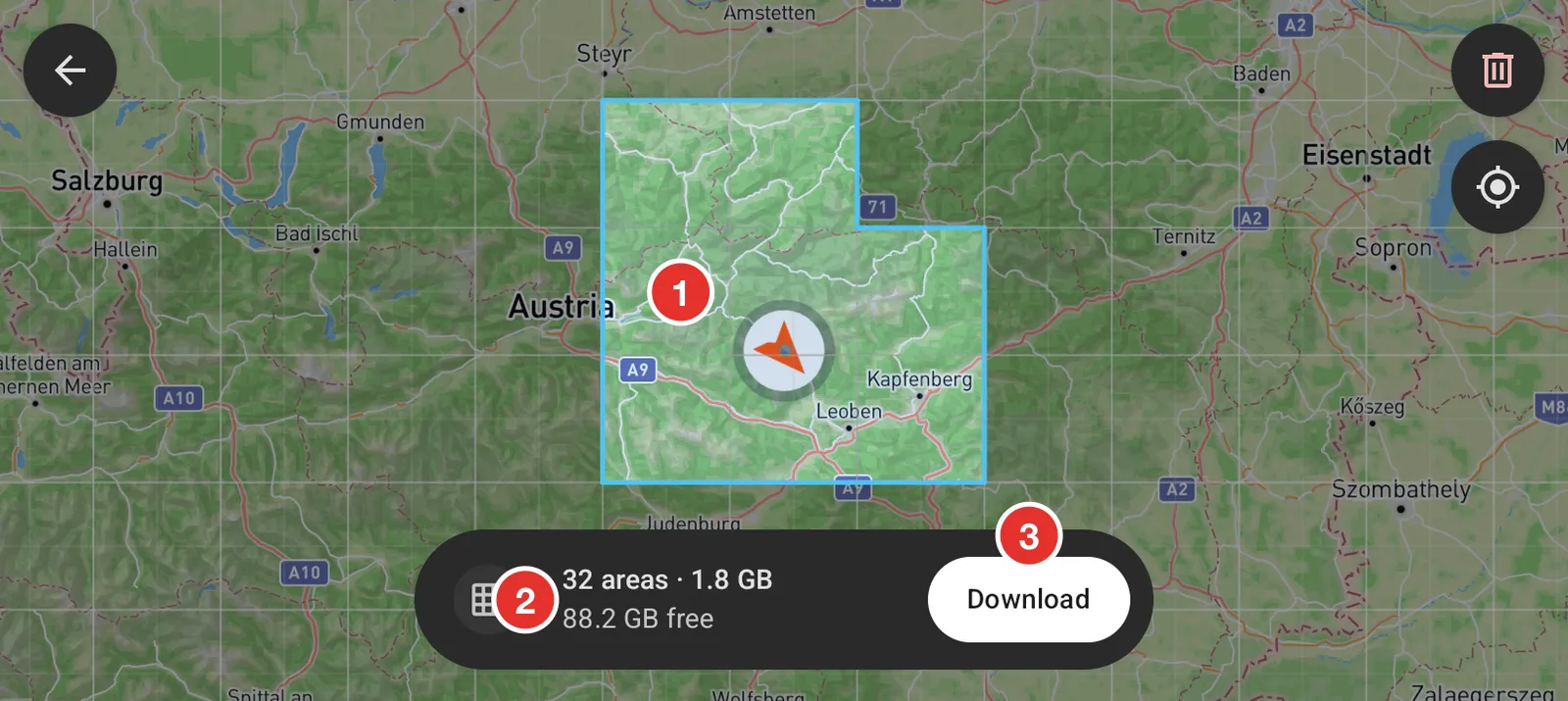
- Tap squares to add them. Tap a chosen square again to drop it.
- The bar counts the areas, the space they need, and the room the bike screen has left.
- Tap Download.
Pick the ground you actually ride. It is tempting to select a whole county, and a whole county is a lot of gigabytes.
A download runs while Head North is open. If you close the app it stops where it got to, and the next time you open the app it carries on with the squares it had not finished. Squares that already came down stay down.
Open the picker
Open Settings, then Offline maps.
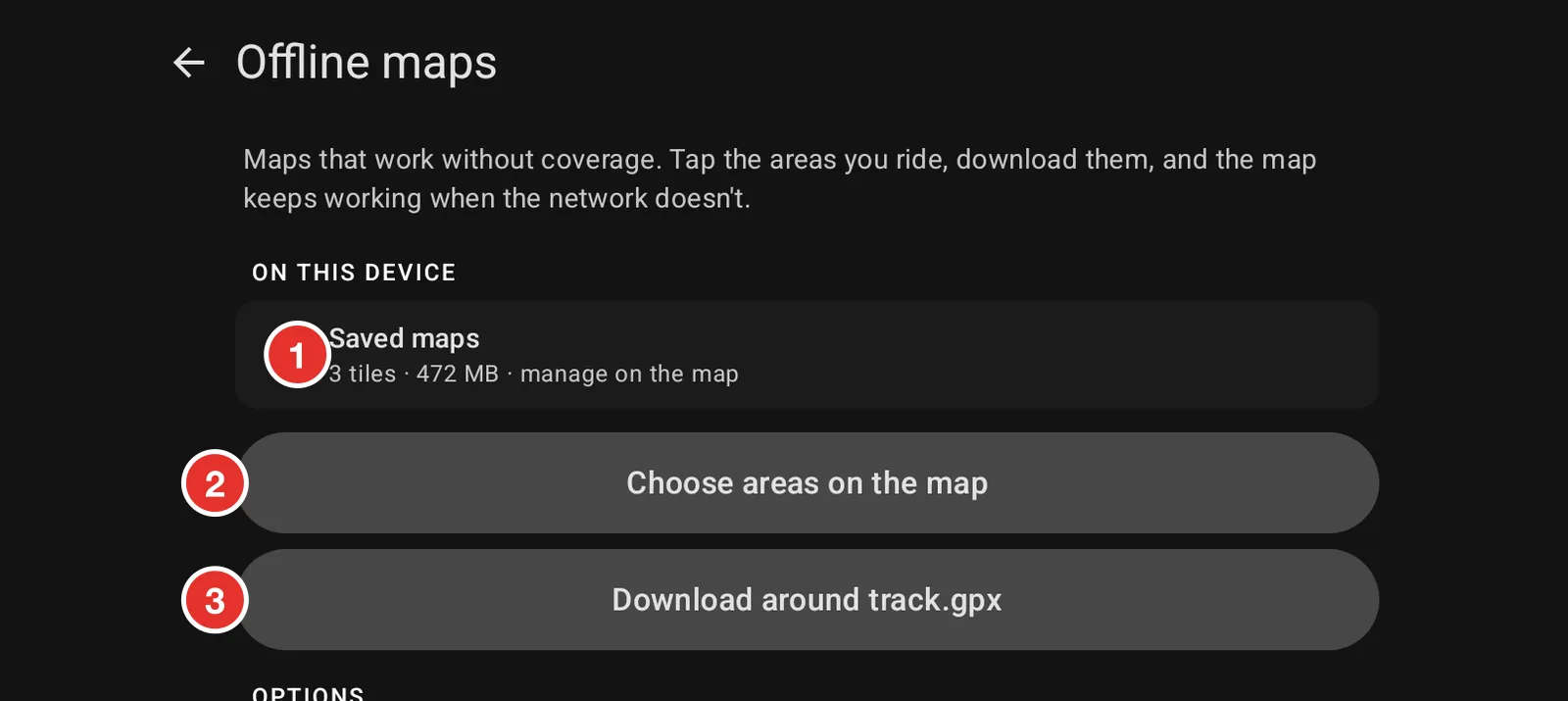
- Saved maps counts what is already on the bike and how much room it takes.
- Choose areas on the map opens the picker above.
- The second button names the route you have open and downloads a band along it. This is the quick way when you already know where you are riding.
Choose the map type
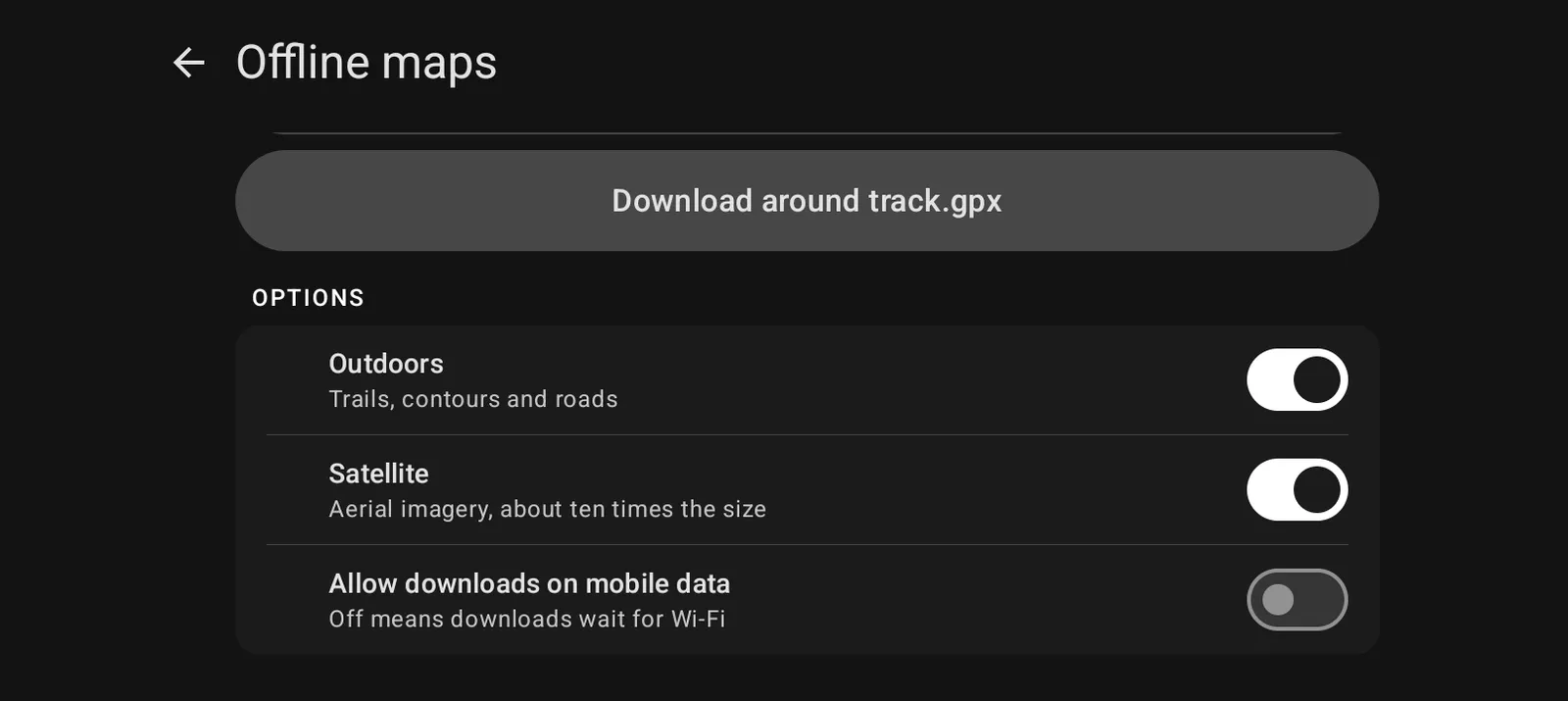
- Outdoors is trails, contours and roads. This is the one to keep.
- Satellite is aerial imagery. It is worth having and it is roughly ten times the size, so be choosier about where.
- Allow downloads on mobile data is off to start with, so a download waits until you are on Wi-Fi. Turn it on if you are away from Wi-Fi and would rather spend the data.
Both map types are on to start with. Turning Satellite off before a big download cuts it to about a tenth of the size.
Remove what you saved
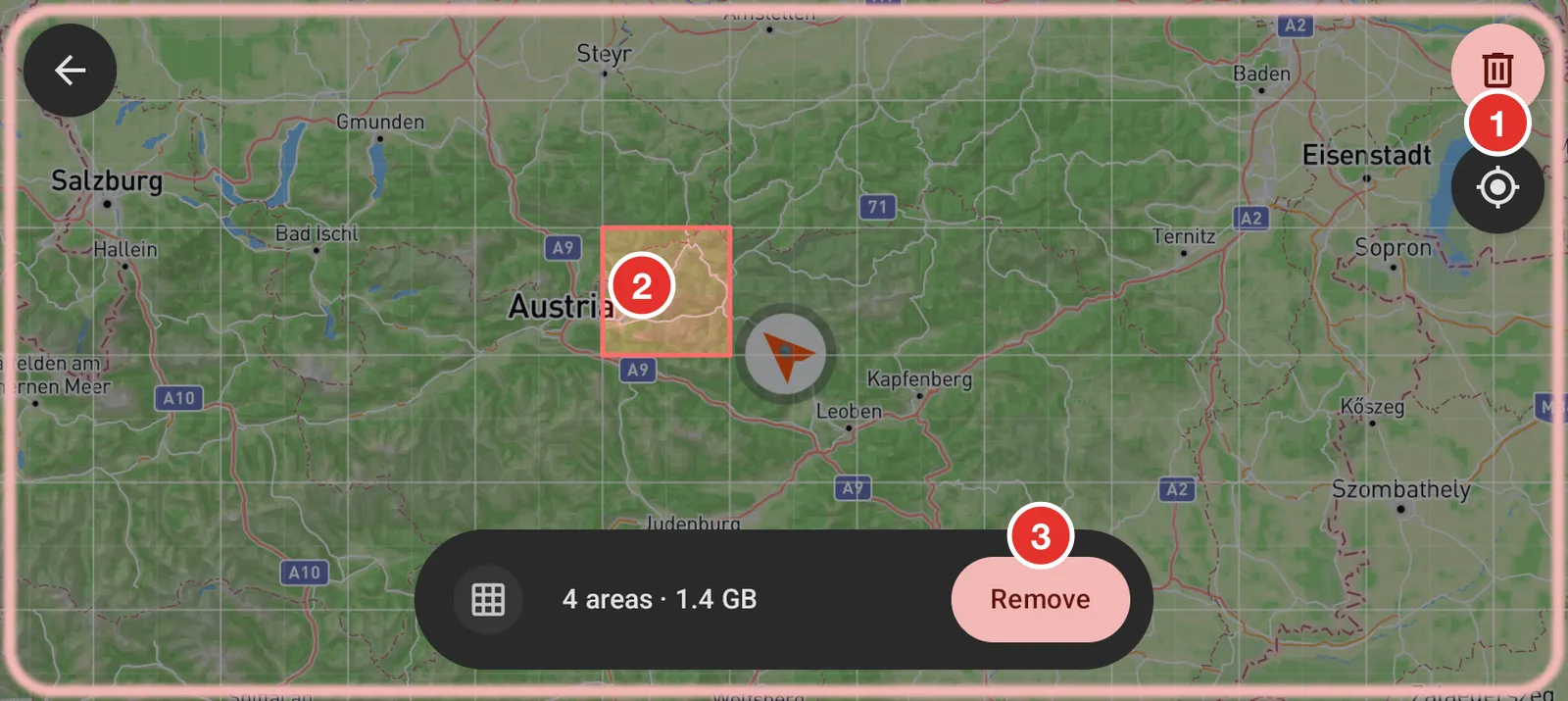
- In the picker, tap the bin. A pink border says you are removing, not adding.
- Tap the saved areas you no longer ride. They turn red.
- Tap Remove. The space comes straight back.
Tap the bin again to go back to choosing areas.