
Bike data
Head North reads your Stark VARG and shows what it says above the map. You get the numbers you would switch to the dashboard for, without leaving the map.
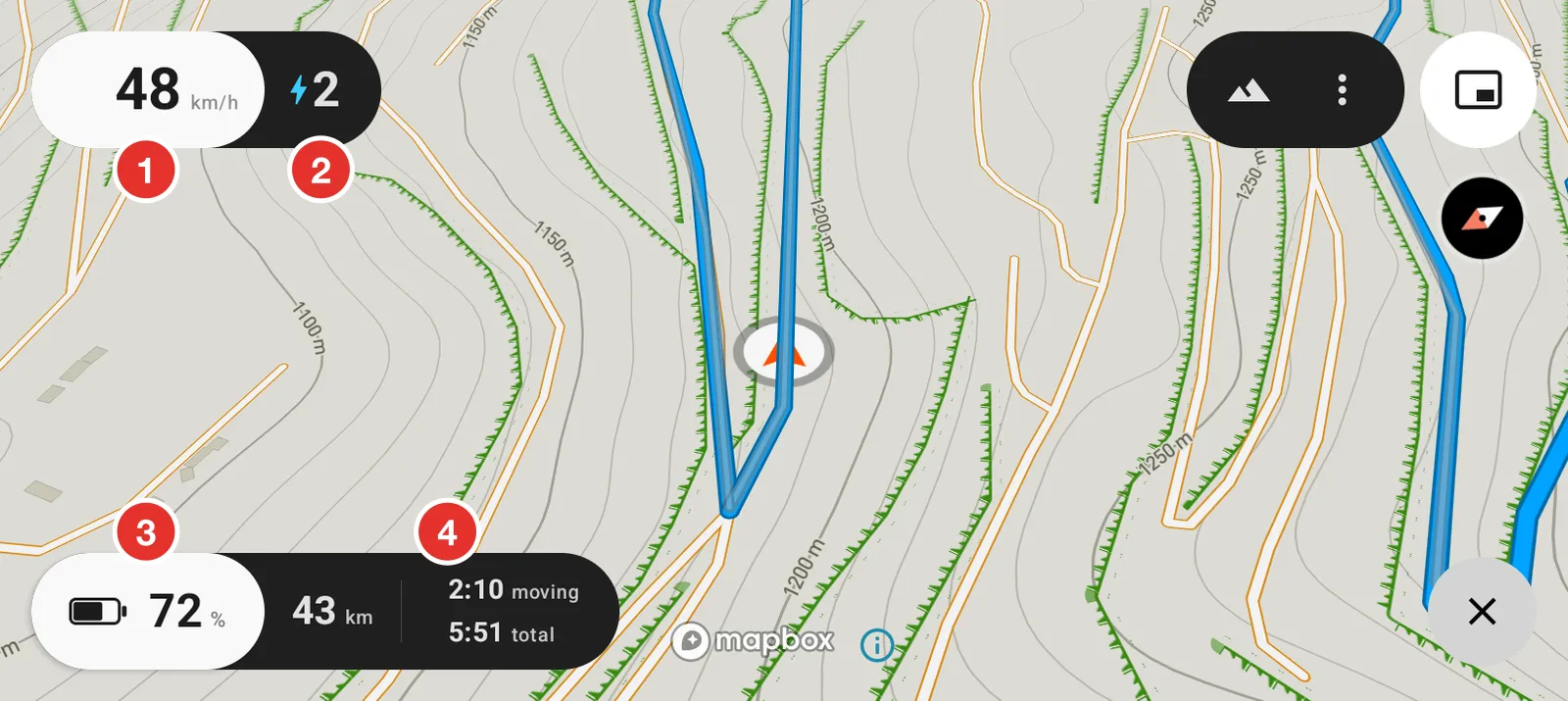
- Your speed, straight from the bike.
- Your ride mode. The colour changes with the mode.
- Your charge.
- Your distance and time for the day. Tap this pill to cycle it.
Supported on the Stark VARG MX 1.2, EX and SM.
Turn it on
Open Settings. Your bike has a card at the top of the list, with its name, its vehicle number and the state of the connection. Tap the card.
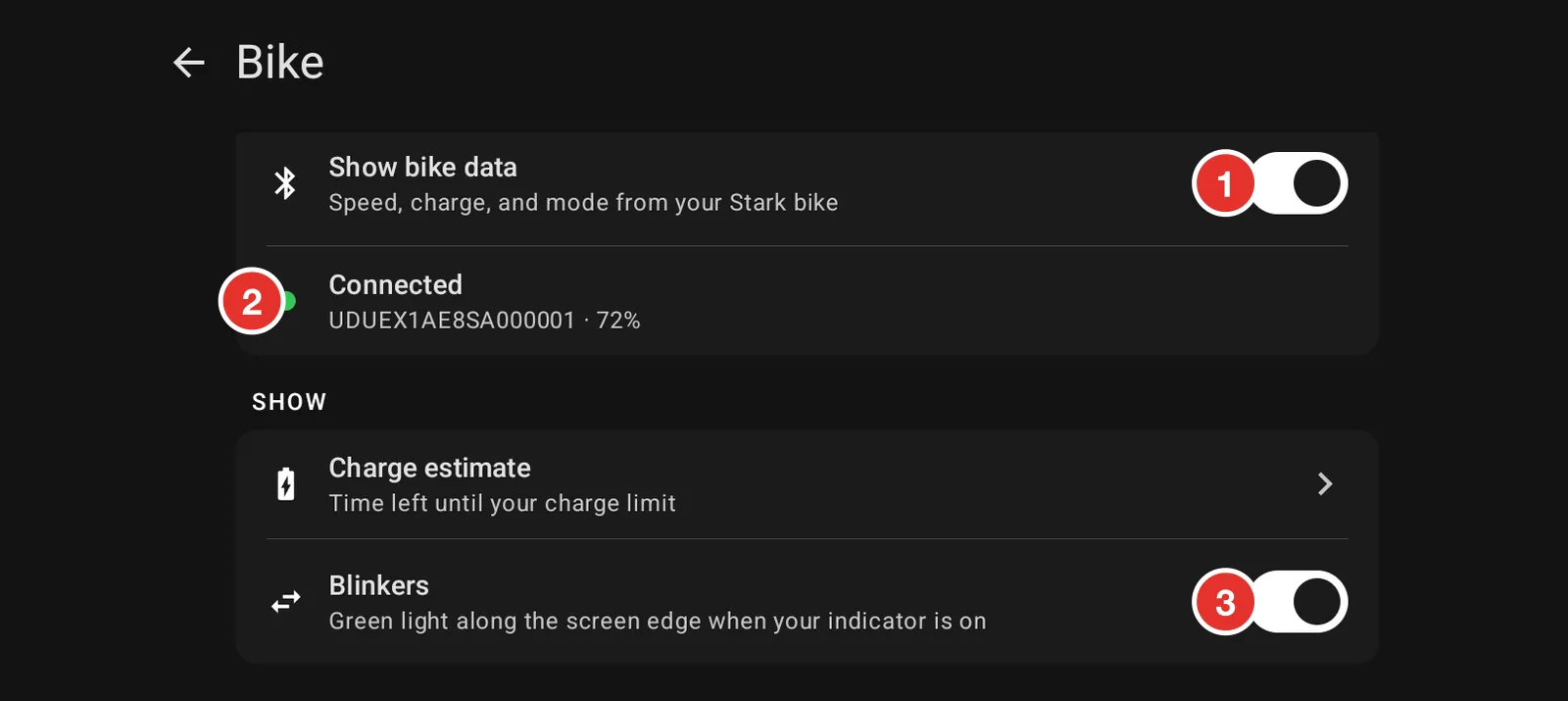
- Show bike data turns the readouts on and off.
- The status line says where the connection has got to. If it is waiting for the Stark app, open the Stark app once and let it connect to the bike. Head North listens in; it never sends anything to the bike.
- Blinkers is covered further down this page.
Check what the bike reported
Open Settings, tap your bike's card, then Your bike.
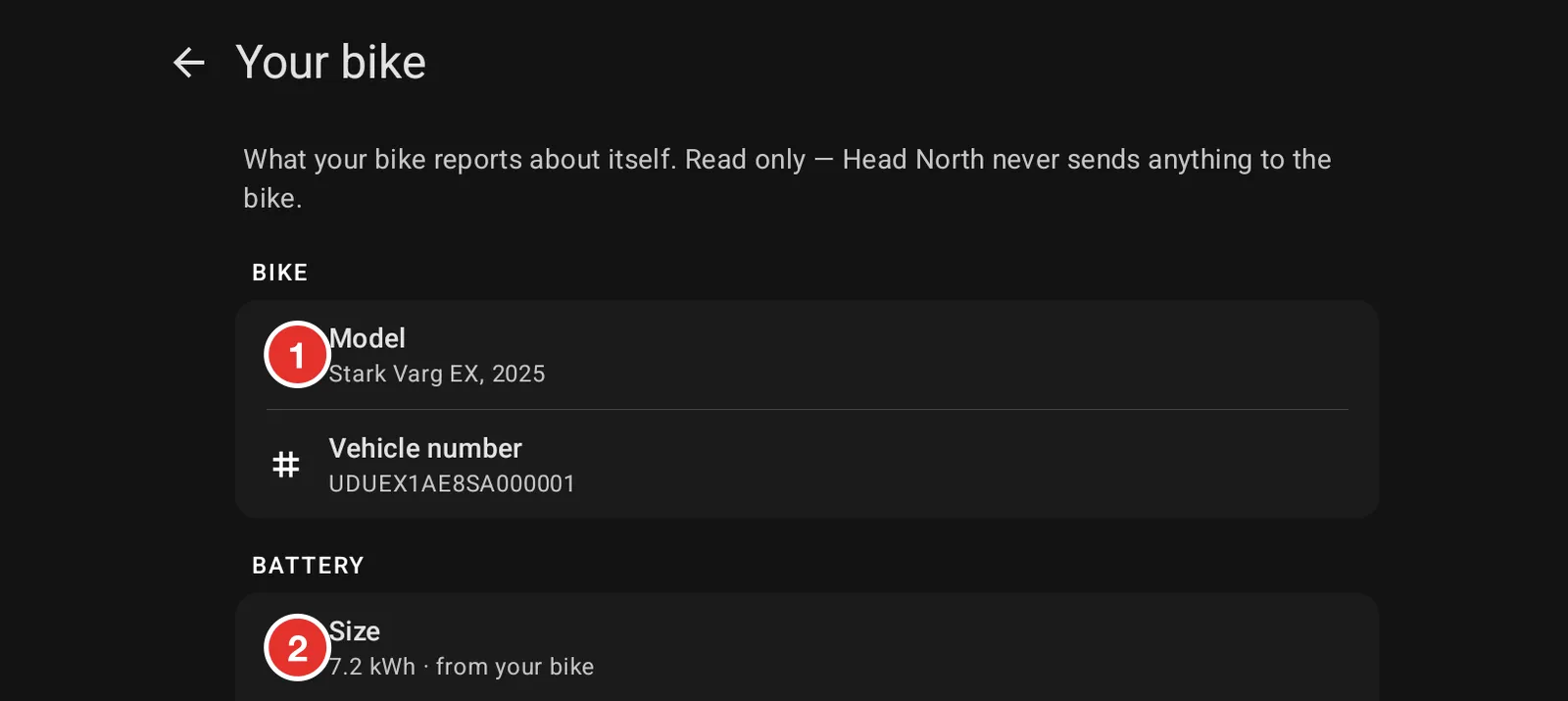
- The model and year, read from the bike's own vehicle number.
- The battery size. The charge estimate uses this number, so check it here first if the estimate looks wrong.
This screen is read only.
Speed without the bike
The bike link is not always there. It drops when the Stark app is closed, and it does not exist at all on an older bike.
Open Settings, then GPS speed, under Features.
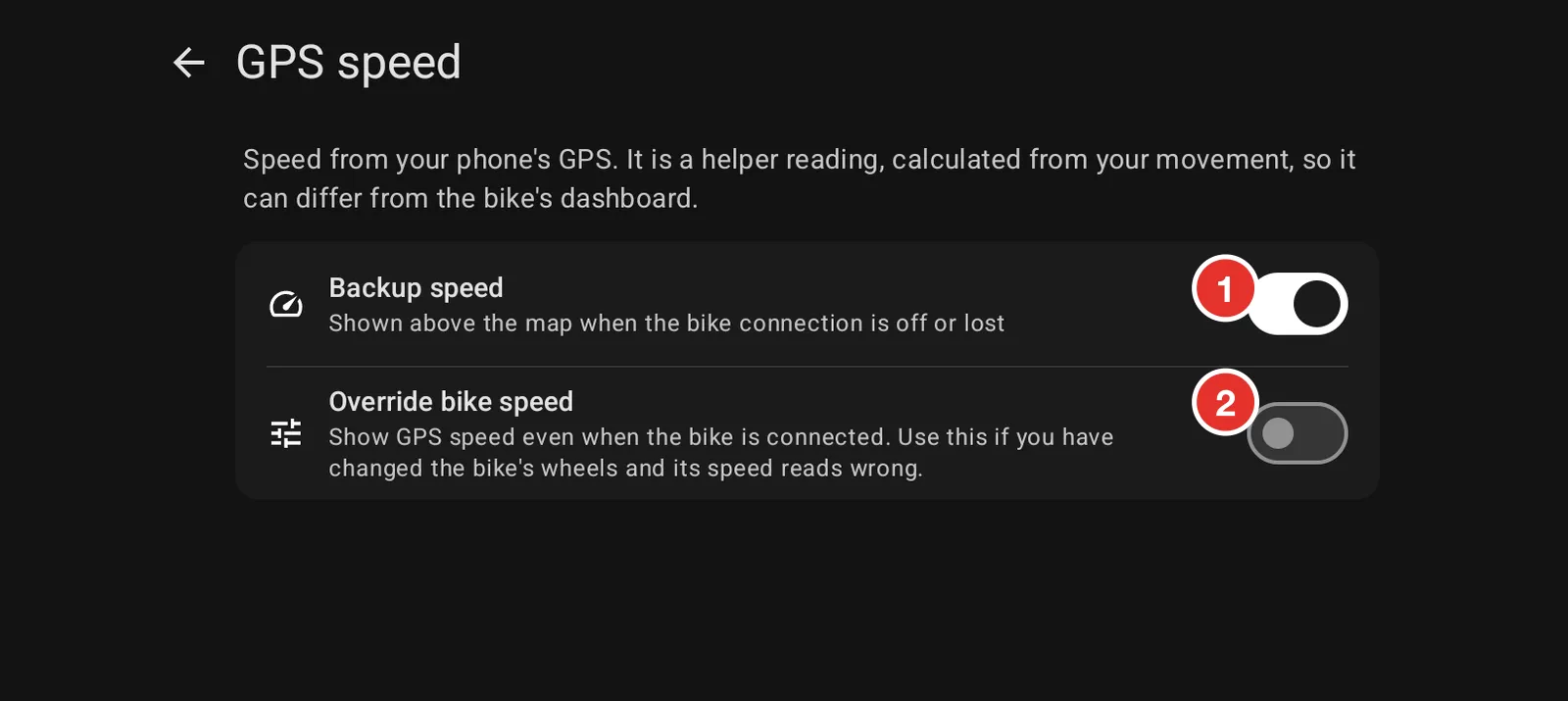
- Backup speed shows a speed worked out from your movement whenever the bike connection is off or lost. Turn this on if you ride a bike that Head North cannot read.
- Override bike speed uses the GPS reading even when the bike is connected. Turn this on if you have changed wheel or tyre size and the bike's own speed now reads wrong.
GPS speed is a helper reading. It comes from how fast your position is changing, so it lags a little and it can differ from the dashboard.
Ride data
Ride data, in Settings under Features, adds your distance, your moving time and your total time for the day to the charge pill. Tap the pill on the map to cycle between charge, distance and time.
It needs a speed source, so turn on bike data or GPS speed first.
Blinkers
Blinkers is on your bike's card, under Show. With it on, a green light runs down the edge of the screen on the side you are indicating.
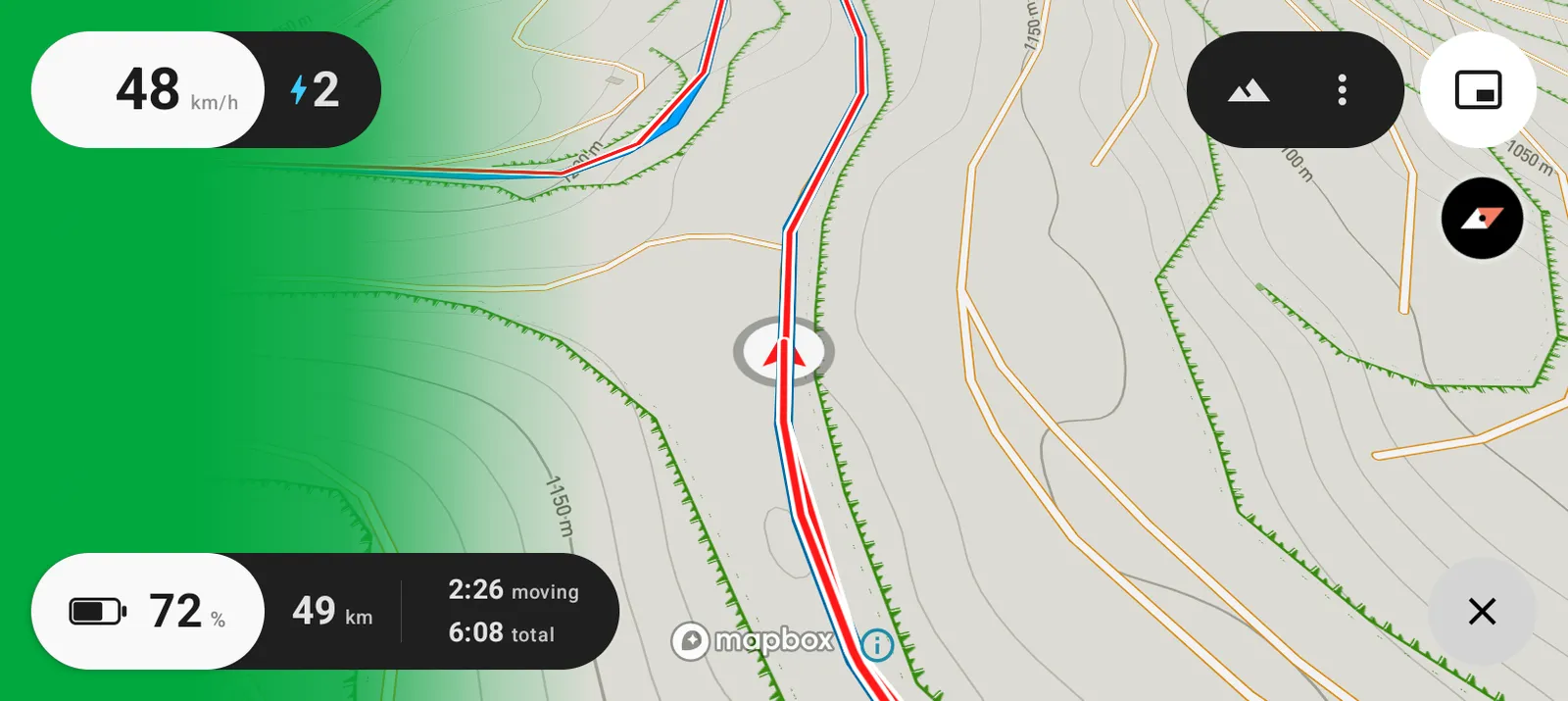
It is meant to be caught out of the corner of your eye, so you do not have to look away from the trail to check whether you left an indicator on.