
Breadcrumbs
Breadcrumbs are a trail of where you have actually been, drawn on top of whatever route you are following.
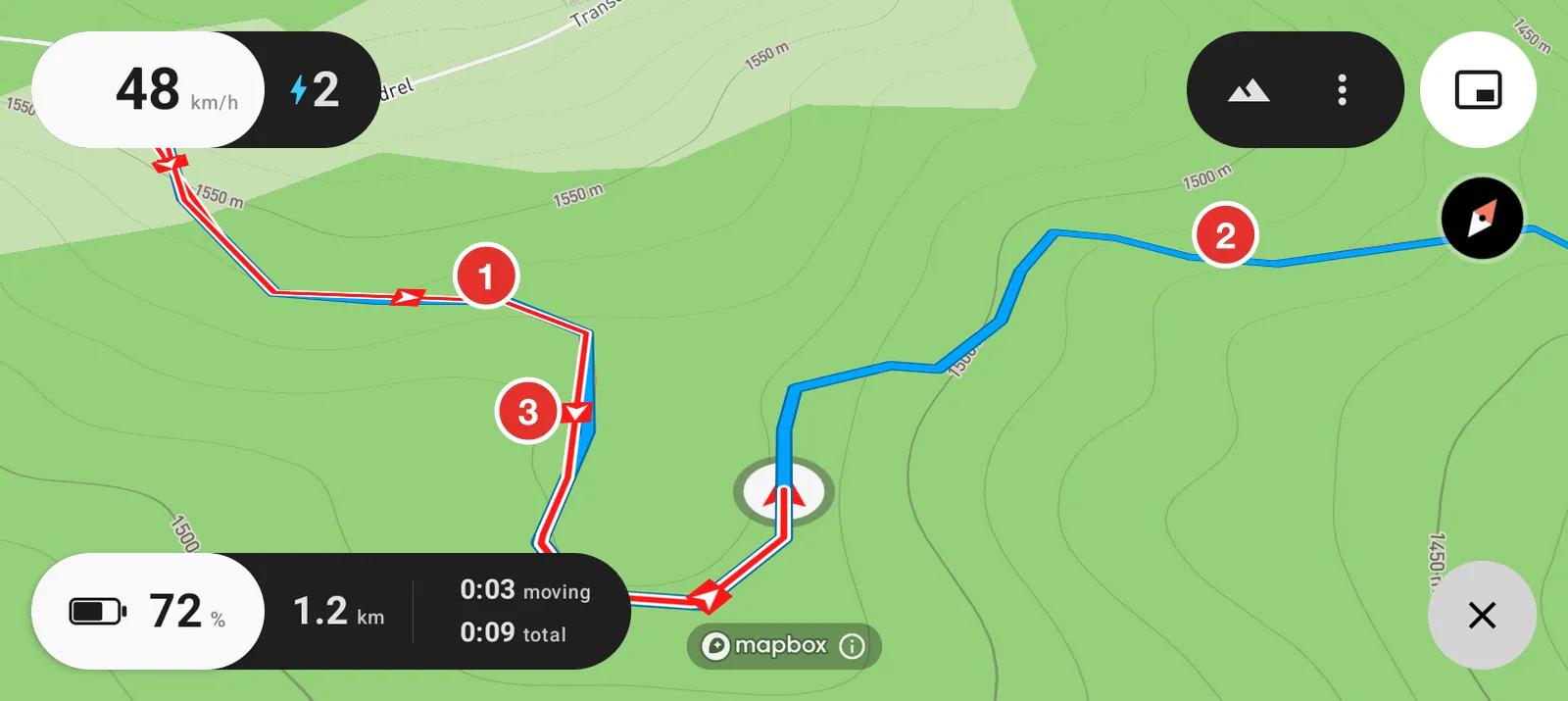
- Your trail. It follows the ground you covered.
- The route you were following, showing through underneath.
- Arrows along the trail. They point the way you rode.
They earn their keep when a trail dead ends, when a track is not on the map, or when you have been going back and forth looking for a line through. The way you came in is already on the screen.
Turn it on
Open Settings, then Breadcrumbs. Show breadcrumbs turns the trail on and off.
Change how it looks
Four controls sit under Appearance on the same screen.
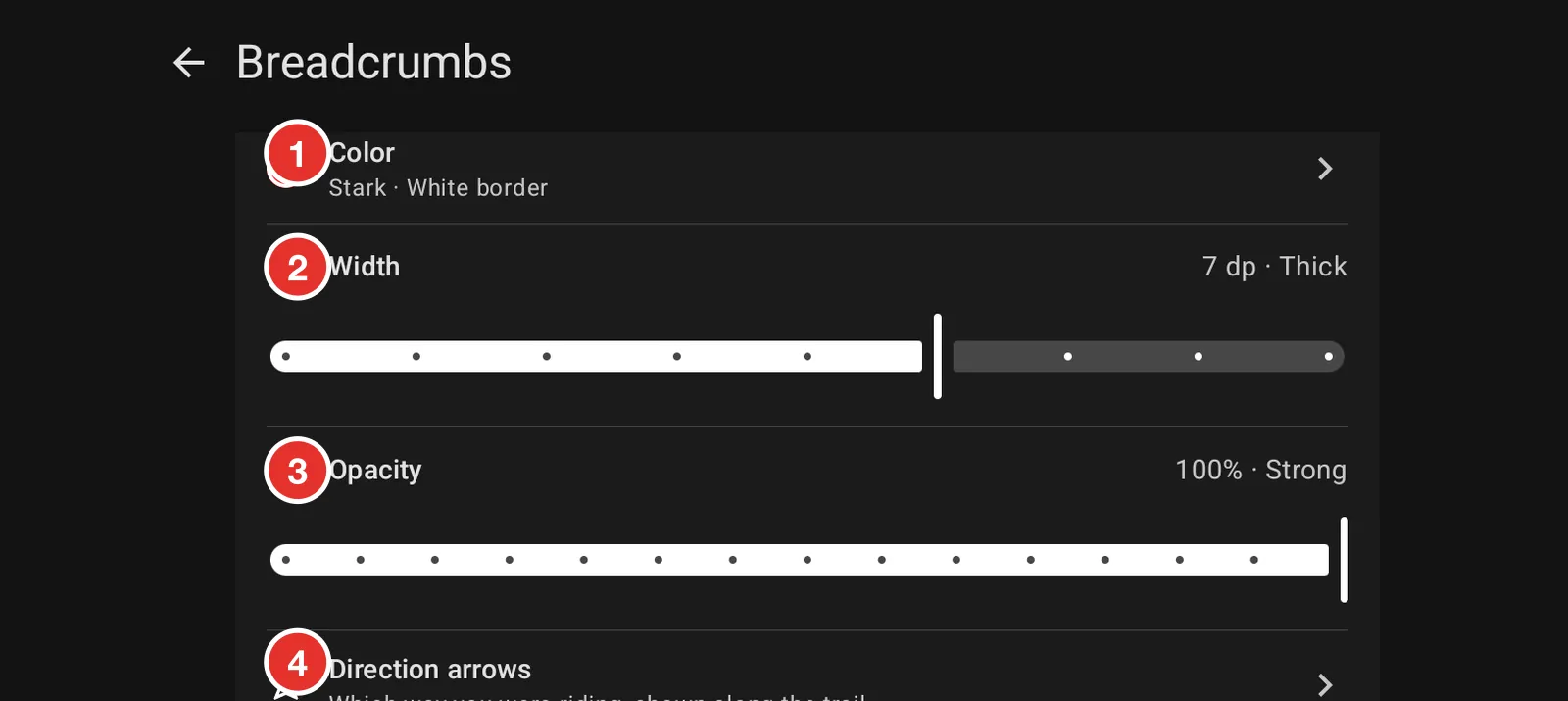
- Color sets the trail colour and its outline.
- Width makes the line thicker or thinner.
- Opacity makes it stronger or fainter against the map.
- Direction arrows opens a screen of its own, below.
If your trail is hard to pick out from the route you are following, change the colour first. Width and opacity help after that.
Pick a colour
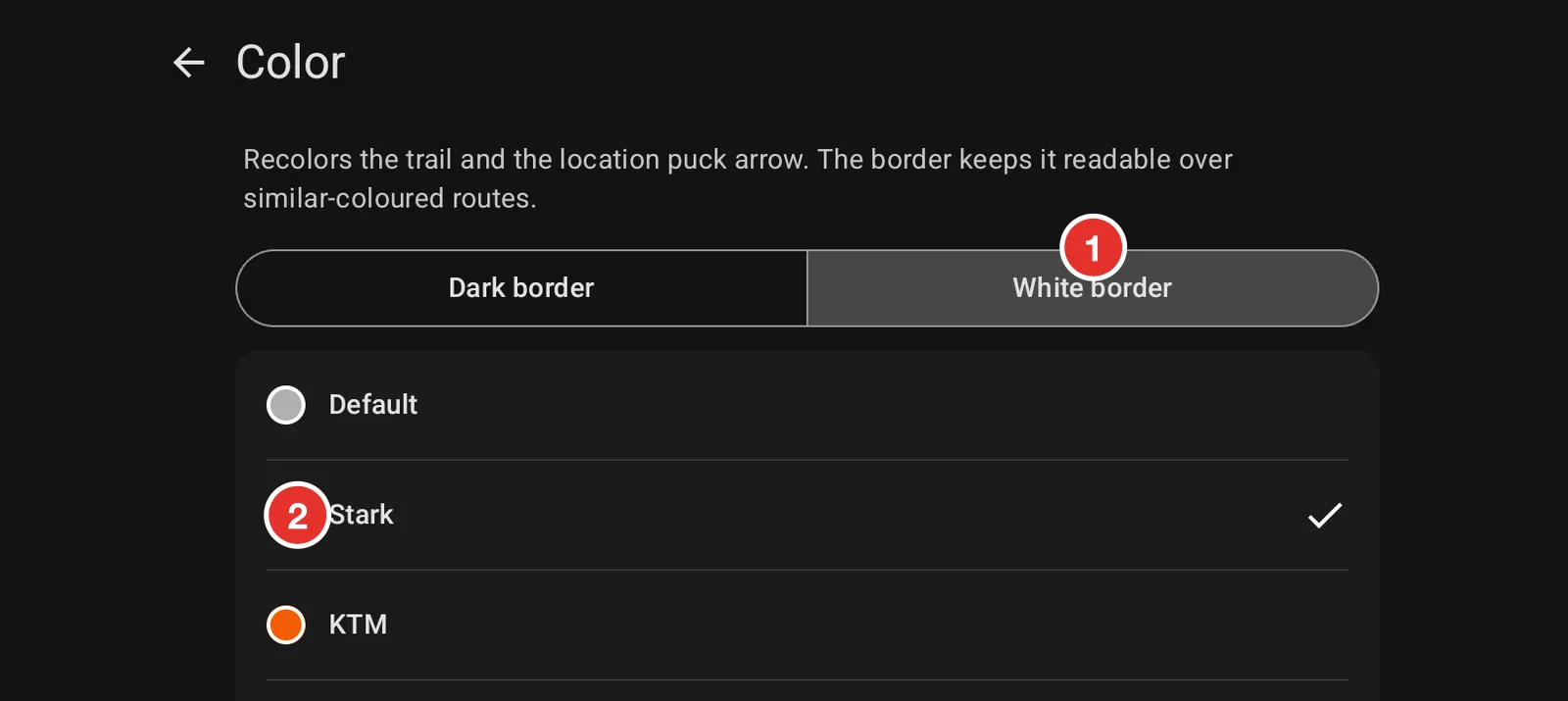
- White border or Dark border sets the outline round the line.
- Six colours, named after the bikes riders arrive on. The colour also recolours the arrow that shows your position, so your trail and your arrow match.
The border does more work than the colour. It is what holds the line apart from the route underneath, and it is the first thing to change if the two are hard to tell apart.
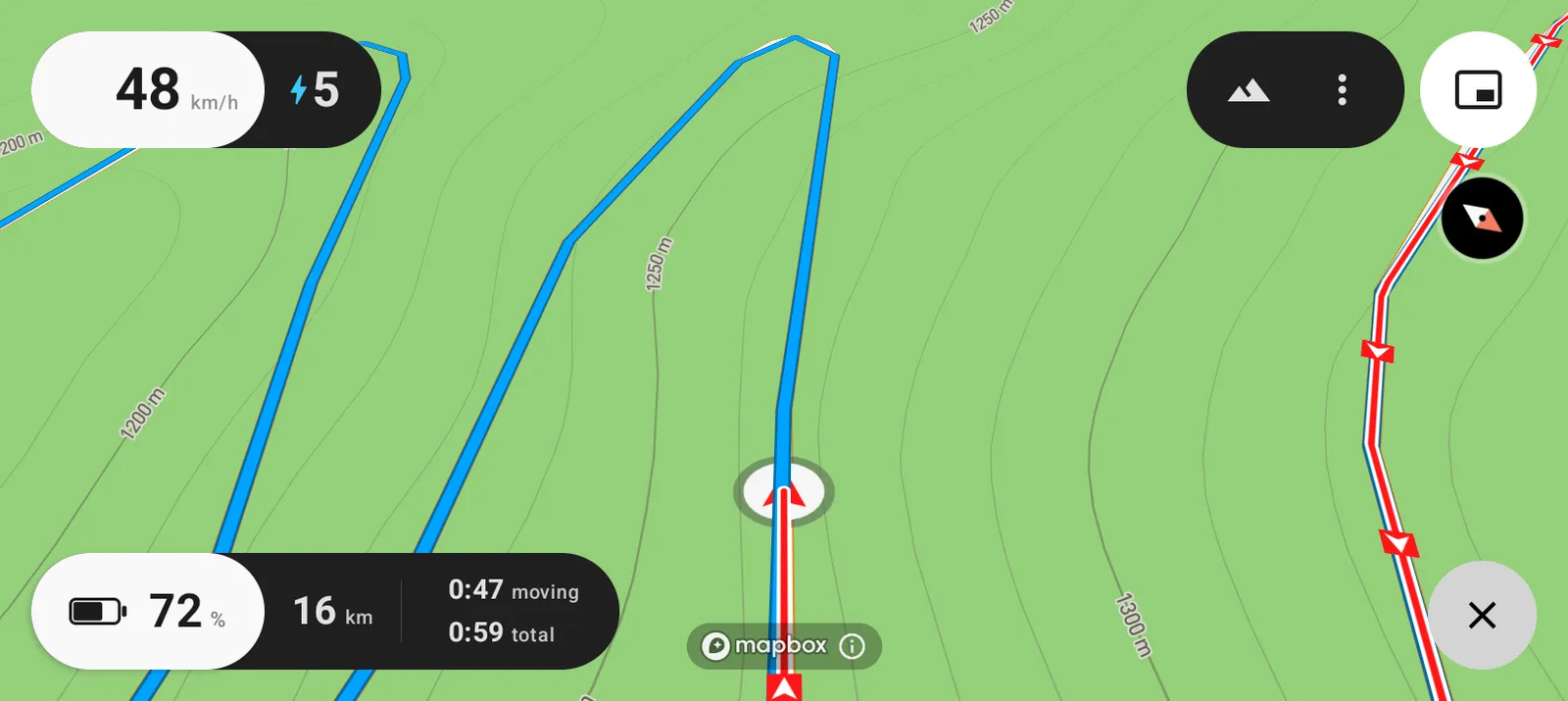
White border. The high visibility option, and the one to keep if you ride in open sun.
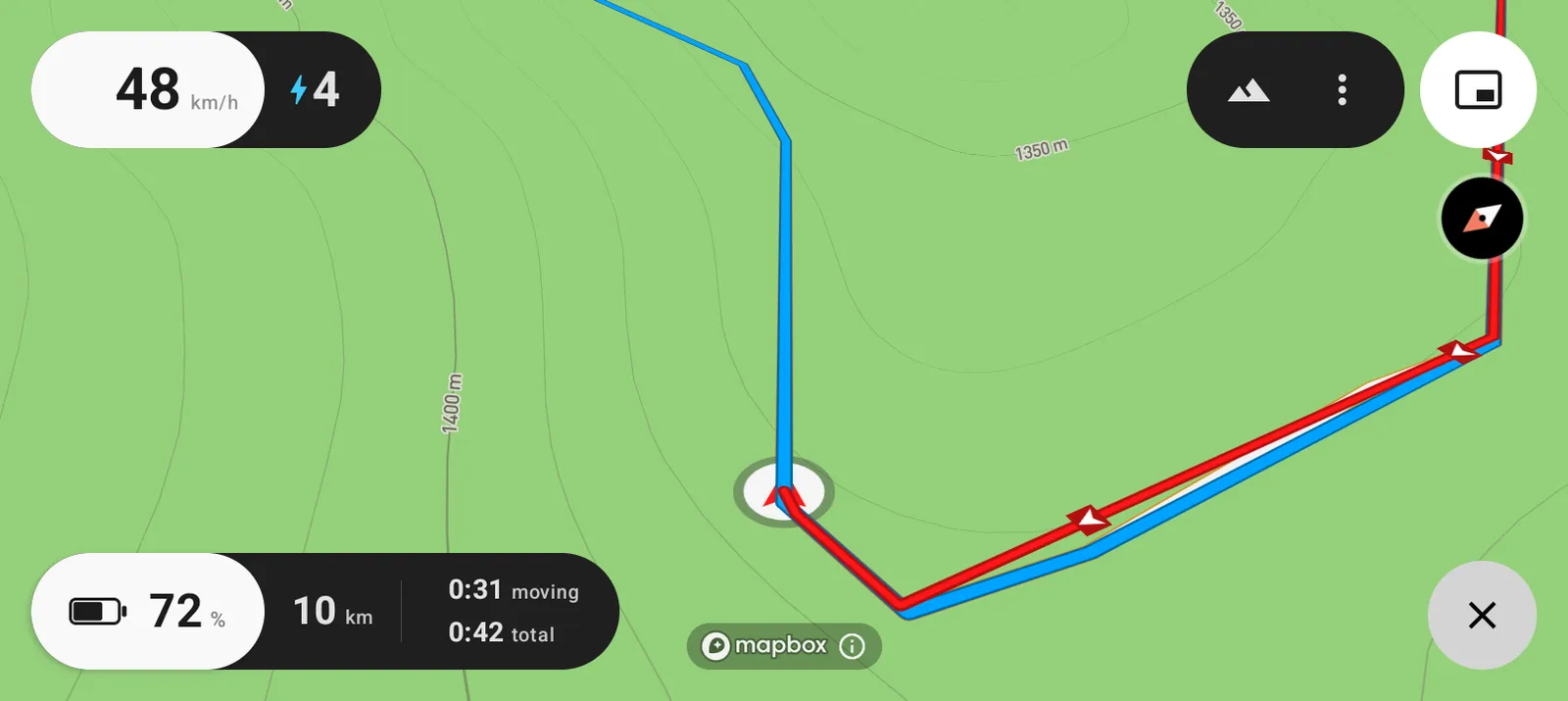
Dark border. The same trail, quieter against a pale map.
Show which way you rode
Arrows sit along the trail every few hundred metres and point the way you were going. Where your trail crosses itself, they tell you which leg you came in on.
They are on from the start. Open Settings, then Breadcrumbs, then Direction arrows to change them.
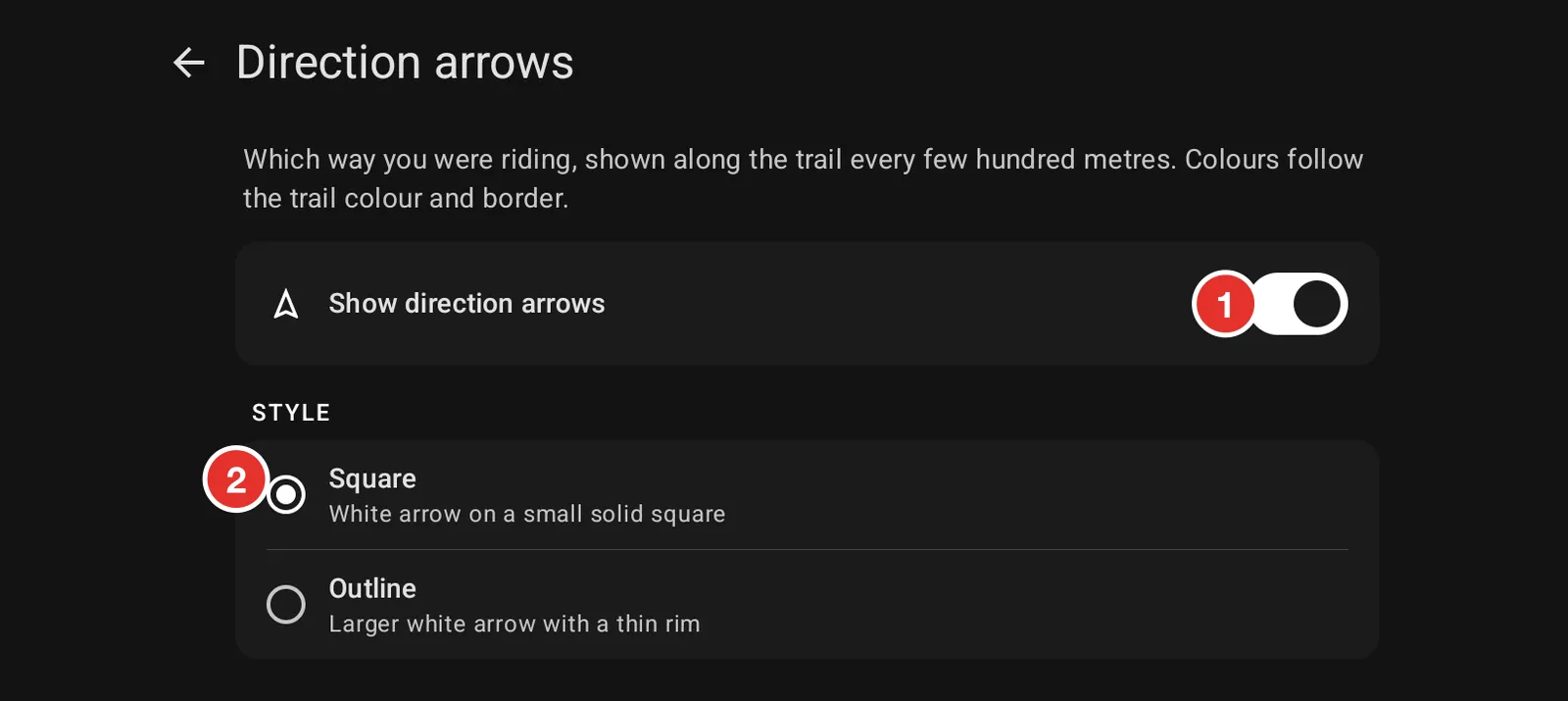
- Show direction arrows turns them on and off.
- Two styles, below.
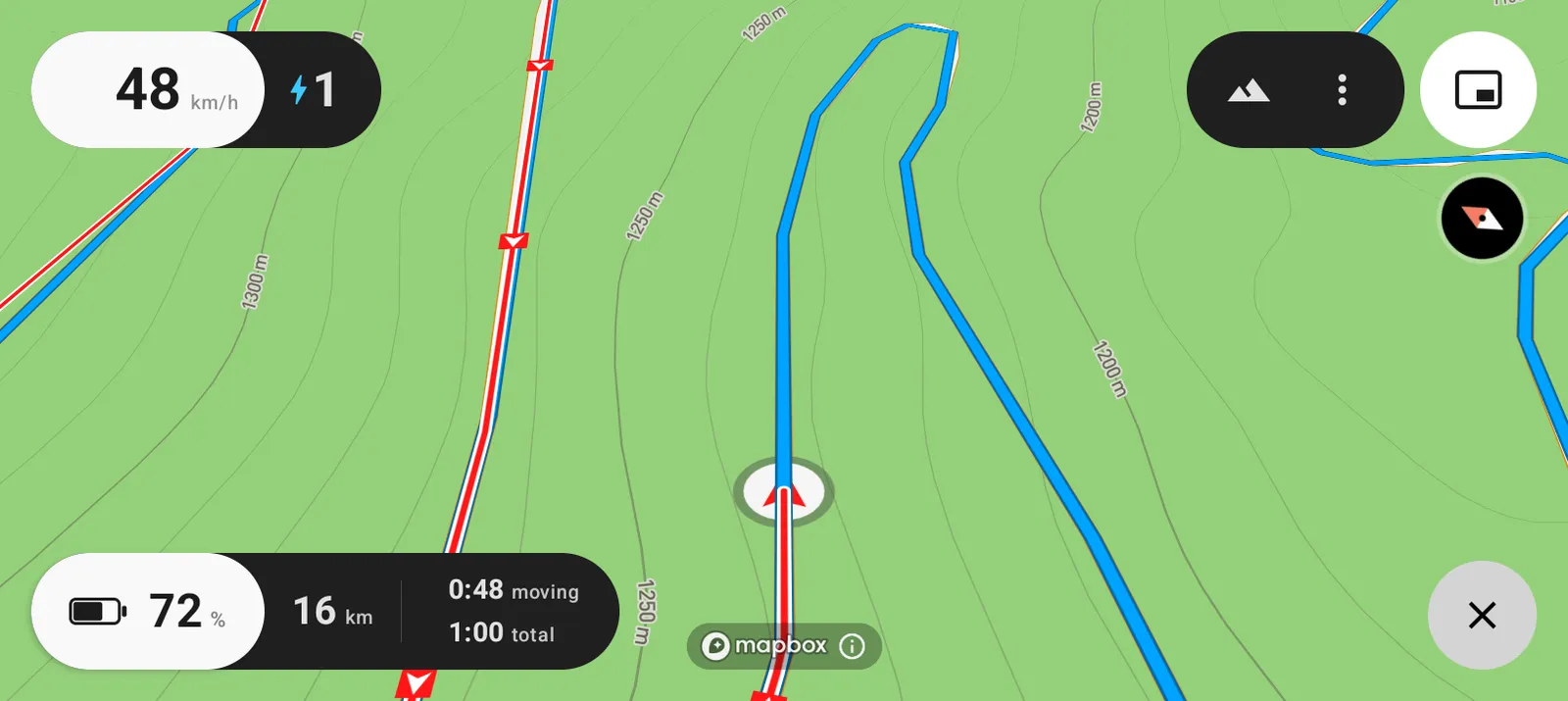
Square. A white arrow on a small solid tile in your trail colour. It stays compact where a trail doubles back on itself.
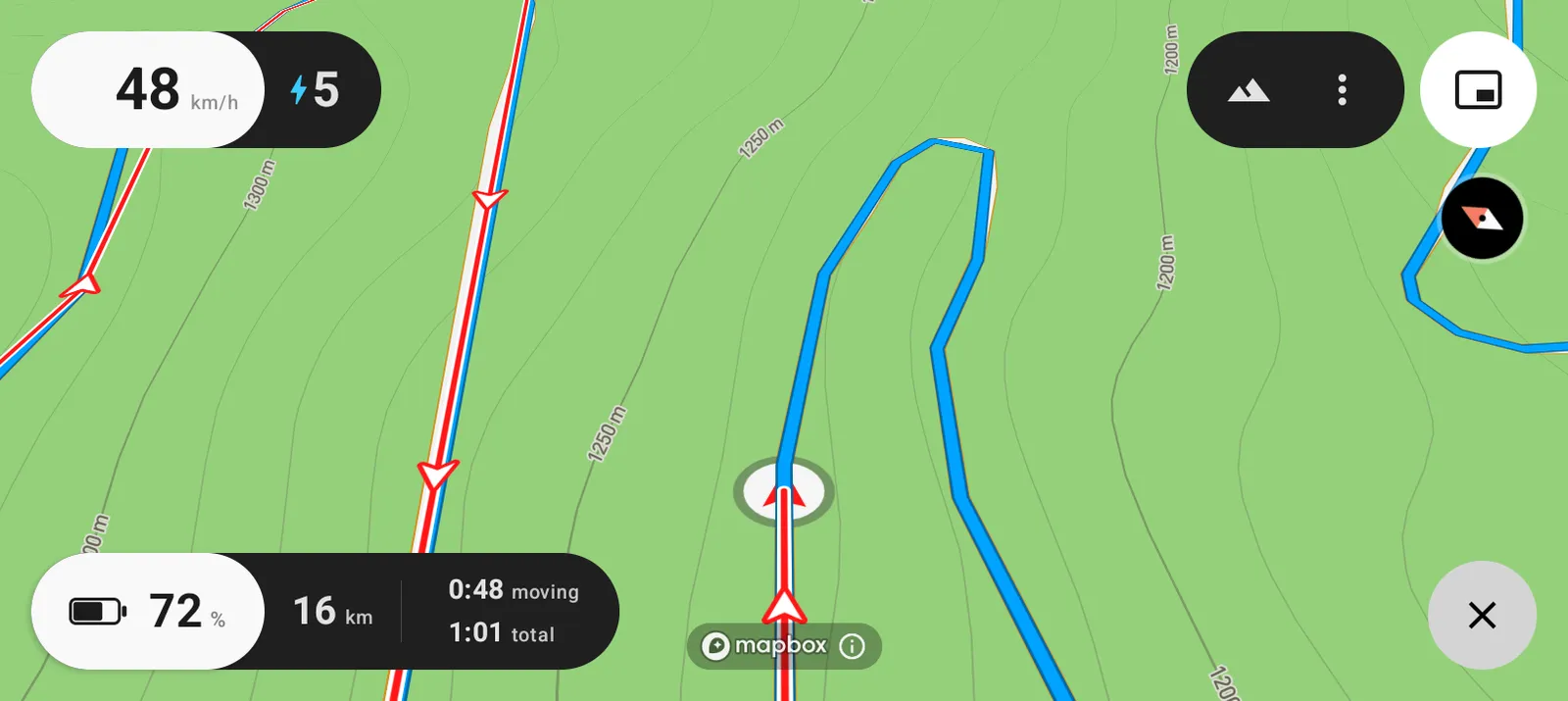
Outline. A larger hollow arrowhead with a thin rim. Easier to catch at a glance, and it covers more of the line.
The arrows take their colours from the trail, so changing the trail colour carries them with it. A very short piece of trail gets no arrow. Under about 100 metres there is not enough line to place one on.
Where the trail is kept
The trail is recorded on the bike screen and stays there. There is no account and no server, and it is deliberately left out of Android's own backup. A factory reset of the Arkenstone removes it.
Head North groups what you ride by day, so each day's riding is its own trail.