
How to see your map while riding the Stark VARG
The Stark app takes over your screen every time you ride. Here are all the ways to get your map back — from quick workarounds to a proper fix.
The problem everyone runs into
If you own a Stark VARG, you already know the deal. The moment you put the bike in Drive, the Stark app takes over the entire screen and shows the gauge display. Speed, battery, power mode — that’s all you get.
Want to check your trail map? Too bad. The Stark app pushes itself to the front every time the bike changes state — when you engage, shift to neutral, change power modes, or go into walk mode. Your navigation app gets buried behind it.
This means you either stop the bike every time you need to check a turn, or you pull out your personal phone from your pocket. Neither is great when you’re on single track.
Riders on the Electric Dirt Riders forum have been working on this problem since late 2024. Here’s everything that actually works, tested by real owners.
Method 1: Split screen mode
This is the most popular workaround and works on both the MX and EX. You use Android’s built-in split screen to show two apps side by side — the Stark app on one half, your map on the other.
The trick is that the Stark app thinks it’s still in the foreground, so it stops fighting for control.
How to set it up
- Close everything first. Tap the square button at the bottom of the screen (the multitask button). Swipe all apps away to close them.
- Open the Stark app. Let it connect to the bike and show the gauge display.
- Go to the home screen. Tap the circle button (home).
- Open your map app. Open onX, GAIA, or whatever navigation app you use.
- Open the multitask view. Tap the square button again. You should see both apps.
- Tap your map app’s icon (the small icon above the app preview) and select “Split screen” from the dropdown.
- Select the Stark app as the second app.
- Slide the divider all the way to give your map app the full screen. It’s either 50/50 or 100% — there’s no in-between on the Stark phone.
What to know
- Works on both MX and EX. Multiple riders have confirmed this.
- 50/50 split clips the gauges. If you leave it at 50/50, the Stark app gets cut off and you can only see the first digit of the battery percentage. Slide it all the way for your map.
- Switching back is a bit clunky. To check your battery level, tap the multitask button, select the Stark app, check it, then go through the split screen steps again. You get fast at it with practice.
- The Stark app stays connected. Since it’s technically still running, the bike stays linked and you keep safety warnings.
Method 2: Turn off “Display over other apps”
This is the cleanest workaround for MX owners. A rider named Chadx on Electric Dirt Riders dug into the Android settings and found the real reason the Stark app keeps hijacking the screen — it has a permission called “Display over other apps” turned on by default.
Turn that off, and the Stark app behaves like any normal app.
How to set it up
- Go to the home screen on your Stark phone.
- Find the Stark app icon and long-press it.
- Tap “App Info” from the menu that pops up.
- Scroll down to “Display over other apps” and tap it.
- Toggle it off (from “Allowed” to “Not allowed”).
- Increase your screen timeout. Go to Settings > Display > Screen timeout. Change it from the default 1 minute to 10 or 30 minutes. Otherwise your screen goes dark while you ride.
- Restart the Stark phone to make sure everything takes effect.
What to know
- Works great on MX. Tested and confirmed by multiple MX owners. You can run onX or any other map app in full screen while riding.
- Does NOT work on EX. At least one EX owner (Jake on the forum) confirmed the Stark app still takes over on the EX even with this setting off. The EX software seems to handle this differently.
- You lose on-screen warnings. Since the Stark app is no longer allowed to pop up over other apps, you won’t see overheating warnings or other alerts on screen. Keep that in mind — it’s the same as riding with the phone in your pocket.
- Set “Keep phone awake” in your map app. Most GPS apps like onX and GAIA have this option in their settings. Turn it on so the screen doesn’t go dark mid-ride.
Method 3: Force stop the Stark app
The nuclear option. You completely kill the Stark app, which frees the screen entirely for your map. Simple and effective, but comes with trade-offs.
How to do it
- Open both apps — the Stark app and your map app.
- Engage the bike and select your power mode.
- Open the multitask view (square button).
- Swipe the Stark app up to close it. Or for a more thorough kill: long-press the Stark app icon on the home screen, tap “App Info,” then tap “Force Stop.”
- Switch to your map app. It now has the full screen.
What to know
- Full screen for your map. No split, no shared screen. Your map gets everything.
- No battery level display. The Stark app isn’t running, so you can’t see battery percentage. You’ll need to restart the Stark app when you want to check.
- No safety warnings. No overheating alerts, no error messages. Ride aware.
- The Stark app may come back. Some riders report that a simple swipe-to-close isn’t enough — the app restarts itself. If that happens, use the Force Stop method through App Info.
Method 4: Use a Picture-in-Picture map overlay
The methods above all have the same basic trade-off: you either lose the Stark app entirely, or you deal with a cramped split screen.
There’s a different approach. Head North uses Android’s Picture-in-Picture to put a small floating map window on top of the Stark dashboard. The Stark app keeps running normally underneath — you still see your battery, power mode, and safety warnings. But now you also have a map showing your position, heading, GPX routes, and waypoints.
The floating window stays on screen no matter what the Stark app does. Change power modes, go to neutral, engage — the map stays put.
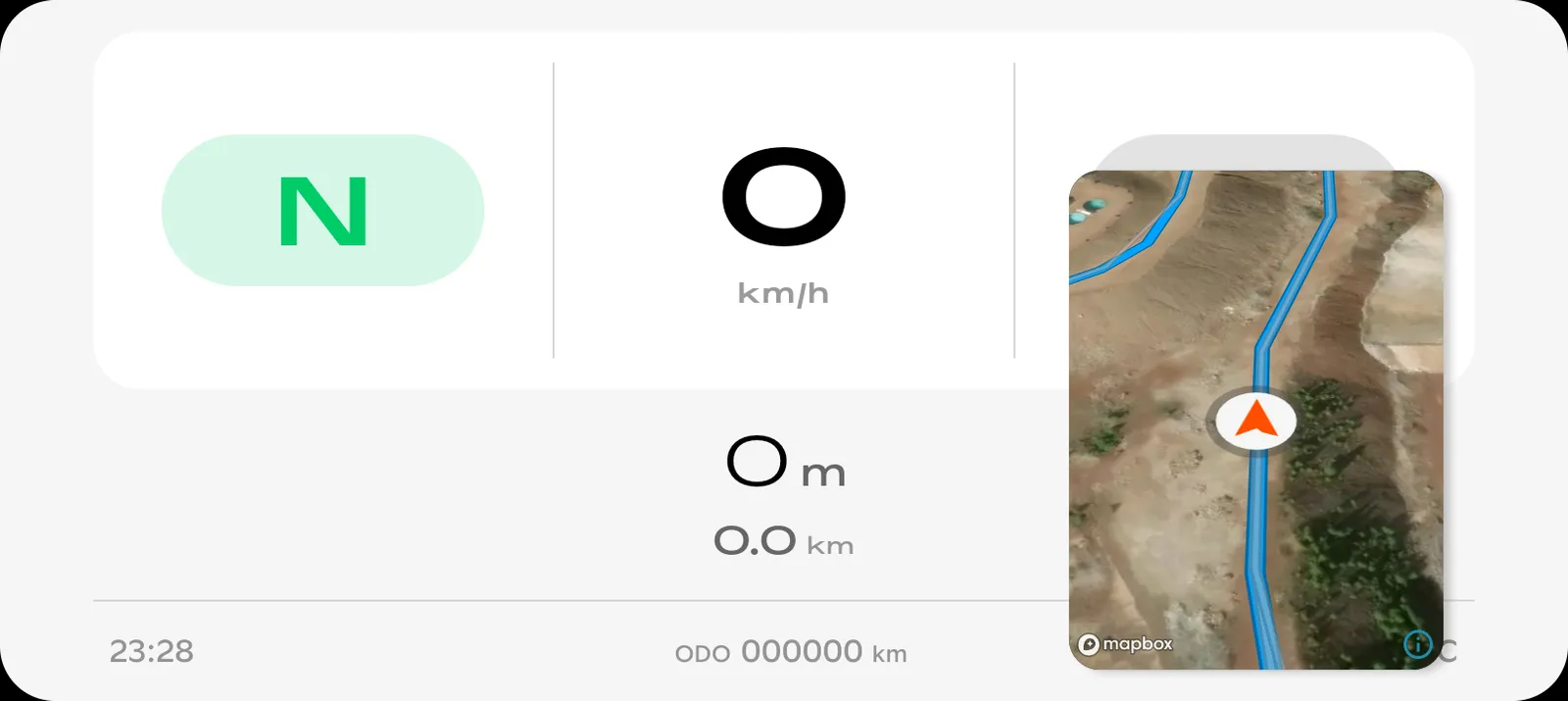 The map floats on top. The Stark app runs normally underneath.
How it works
- Install Head North from the Google Play Store on your Stark phone.
- Load your GPX trail (or just use the live map without one).
- Tap the PiP button or press the home button. The map shrinks into a floating window.
- Ride. The map stays visible on top of the Stark dashboard. Tap it to go full screen and explore, then tap back to shrink it again.
What to know
- Works on both MX and EX. No settings changes needed. No workarounds.
- Stark app stays fully running. Battery level, power mode, safety warnings — all still visible and working.
- One-time purchase. No subscription, no account.
- Not a full navigation app. Head North shows your position, heading, and GPX trail on a map. It doesn’t do turn-by-turn, route planning, or trail databases. Use it alongside your planning app (onX, GAIA, etc.), not instead of it.
Which method should you use?
Here’s the honest breakdown:
- Split screen — Good free option. Works on MX and EX. A bit cramped and clunky to switch between apps, but gets the job done.
- Turn off “Display over other apps” — Best free option for MX owners. Full screen map, simple setup. Does not work on EX.
- Force stop — Works everywhere, but you lose all Stark app features including safety warnings. Fine for short rides where you know the terrain.
- Picture-in-Picture (Head North) — The only method that keeps both the map and the Stark dashboard running at the same time. Works on MX and EX. One-time purchase.
Need turn-by-turn? Try Google Maps
If you need actual turn-by-turn directions — for getting to the trailhead or finding the fastest route home — Google Maps can run as a floating window on top of the Stark dashboard too. It’s free and it works, but it comes with some quirks. We wrote a full walkthrough for setting it up.
Tips that apply to all methods
- Download offline map tiles before you ride. Cell coverage in the backcountry is spotty at best. Open your map app in the area you plan to ride while you still have a signal.
- Turn on “Keep screen awake” in your map app’s settings. Otherwise the phone screen goes dark after the timeout, and you’re riding blind.
- Increase “Time to Neutral” if you use Method 2 or 3. Every time the bike shifts to neutral, the Stark app tries to come back. Bumping the timeout from 15 seconds to 60 seconds gives you more breathing room at stops.
- Carry your personal phone as a backup. Run the same trail on your phone in your pocket. If anything goes wrong with the Stark phone setup, you have a fallback.
Get Head North
GPS navigation that stays visible on your Stark VARG dashboard the whole ride. One-time purchase, no subscription.
Last updated on